Showing posts with label Inventor IDW. Show all posts

Tuesday, August 16, 2011

Drawing Dimensions: Left or Right?

Issue:
When placing dimensions on a drawing you find that Inventor seems to place offset dimensions unpredictably, sometimes they land to the right and other times to the left. Inevitably you end up needing to readjust the dimension to the side you intended. Is there a setting for this somewhere?


Solution:
The solution to this problem comes from understanding how the selection order influences the placement of the dimension.

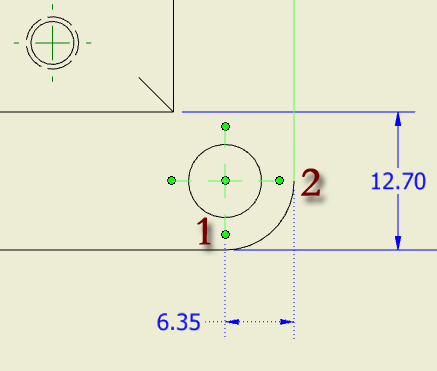
If you select an entity on the left first and then one on the right, the dimension will land on the left:


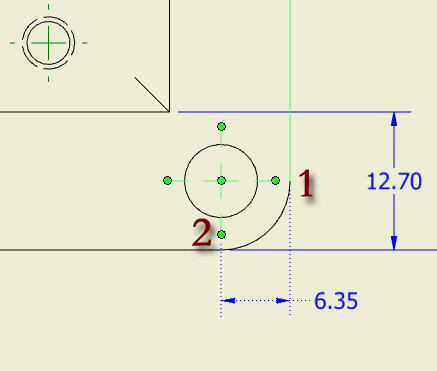
If you reverse the selection order, and choose an entity on the right first and then one on the left, the dimension will land on the right:


It's pretty simple once you're aware of this behavior, but even experienced users can use Inventor a long time without realizing that the selection order influences the dimension placement.


Note that if you inadvertently choose the wrong direction for the initial placement, no worries. Once you've selected the entities to dimension, and are ready to place the dimension,  you can press and hold the CTRL key to have the dimension text "chase" your cursor, allowing you to redirect the dimension text location on the fly.

You can adjust the default placement behavior by going to the Tools tab > Application Options button > Drawing tab, and setting the Center dimension text on creation option. If selected this defaults the text to center, or to one side or the other (depending upon selection order) if the text won't fit. The CTRL key overrides this behavior. If this option is deselected, the CTRL key forces the dimension text to the center.

Thursday, April 21, 2011

Using a Spreadsheet Table in a Drawing Sheet

Issue:
You have a MS Excel file (.xls or .xlsx) that you'd like to place in a drawing. You've tried to use the Insert Object tool, but the resulting OLE (Object Linked Entity) table is of poor quality and doesn't print well.  Is there a better way?
Example of the poor results you get using the Insert Object method.


This might not be the best way to insert the table.


Solution:
Indeed there is a better way than using the Insert Object tool. You can use the General Table tool to do this. Unfortunately, many Inventor users seem to overlook this method. Let's have a look:

Click the General Table button (found on the Annotate tab of the drawing environment):


Click the Browse button to locate the spreadsheet file you want to use:


Once you have located the file you want to use click the OK button:


This will place the Spreadsheet on the drawing sheet as a table:


You'll see the link in the browser as a 3rd Party node, and a sheet node for the table:


To edit the spreadsheet you can right-click the 3rd Party reference and choose Edit:
(note too the Change Source option that allows you to swap out the link of the original spreadsheet with a link to a new spreadsheet)


In Excel you can change cell values as you normally would, then Save and Close the spreadsheet:


Back in Inventor, you can right-click on the table and choose Update:


This will pull the new values into the table:


You can format the table by right-clicking it and choosing Edit, in order to change the Table header, etc.

Note: A few things have been pointed out to me since originally creating this post: 
  • OLE object table will print ok, but it just doesn't display on the page very well. 
  • If you save drawings as PDF OLE's will still display poorly. 
  • If you have merged cells in your table then the OLE option might be best, since the General Table option doesn't honor the merged cells.

Thursday, February 24, 2011

iLogic Code for Parts Lists, Title Blocks and Saving out a PDF

Here is a snippet of iLogic code that does a short list of common tasks for drawing files:
  • Sorts the parts list by Part Number
  • Exports the Parts List to an XLS file
  • Sets the Drawn By and Date fields of a titleblock (via the drawing's iProperties)
  • Saves a copy of the drawing as a PDF file, with some of the PDF options set 
This code also contains some error checks to alert the user when the PDF or XLS already exist and can't be replaced (such as when another user has these files open).

You can just paste the code into a new rule in your drawing file to see it in action. I use this as an external rule, and bring it into existing drawings when they are edited or updated, and also have it included in our drawing template so that all new drawings include it. Having it as an external rule, allows me to add more functions as needed, and to update the code (and all of the files it's included in) quickly.

I use this code daily to manage our drawing files and output a PDF and XLS file for our document management and ERP system and have found it to work well. I've set it up to be triggered on the Save event, so that as the user saves the drawing file, the PDF and XLS are updated or output automatically. Feel free to tear this apart and customize it to fit your needs and/or set it up to run when your drawing is closed rather than saved, etc.

On a related note, I just finished a new chapter dealing exclusively with iLogic for the next edition of Mastering Autodesk Inventor book (due out in June of 2011 if all goes well).


'start of iLogic code----------------------------------------------------------------------------------
'sort parts list
on error resume next
Dim oDrawDoc As DrawingDocument
oDrawDoc = ThisApplication.ActiveDocument

Dim oPartsList1 As PartsList
oPartsList1 = oDrawDoc.ActiveSheet.PartsLists.Item(1)
'If oPartsList1 Is Nothing Then Resume Next

oPartsList1.Sort("PART NUMBER")
'oPartsList1.Renumber
'oPartsList1.SaveItemOverridesToBOM

'------------------------------------------------------------------------------------------------------------
'Export Parts List
path_and_name = ThisDoc.PathAndFileName(False) ' without extension
Dim oDoc As Inventor.DrawingDocument
oDoc = ThisDoc.Document

Dim oSheet As Inventor.Sheet
'oSheet = oDoc.Sheets(1) ' first sheet
oSheet = oDoc.Sheets("Sheet:1") ' sheet by name

' say there is a Partslist on the sheet.
Dim oPartslist As PartsList
oPartslist = oSheet.PartsLists(1)

On error goto handleXLSLock
'Publish document.
' export the Partslist to Excel.
oPartslist.Export(path_and_name & ".xls",PartsListFileFormatEnum.kMicrosoftExcel

'--------------------------------------------------------------------------------------------------------------------
'set Drawn by name
iProperties.Value("Summary", "Author" ) = ThisApplication.GeneralOptions.UserName
'set date
iProperties.Value("Project", "Creation Date" ) = Now
InventorVb.DocumentUpdate()

'--------------------------------------------------------------------------------------------------------------------
'Save PDF with options
path_and_namePDF = ThisDoc.PathAndFileName(False) ' without extension
PDFAddIn = ThisApplication.ApplicationAddIns.ItemById("{0AC6FD96-2F4D-42CE-8BE0-8AEA580399E4}")
oDocument = ThisApplication.ActiveDocument
oContext = ThisApplication.TransientObjects.CreateTranslationContext
oContext.Type = IOMechanismEnum.kFileBrowseIOMechanism
oOptions = ThisApplication.TransientObjects.CreateNameValueMap
oDataMedium = ThisApplication.TransientObjects.CreateDataMedium

If PDFAddIn.HasSaveCopyAsOptions(oDataMedium, oContext, oOptions) Then
'oOptions.Value("All_Color_AS_Black") = 0
oOptions.Value("Remove_Line_Weights") = 1
oOptions.Value("Vector_Resolution") = 400
oOptions.Value("Sheet_Range") = Inventor.PrintRangeEnum.kPrintAllSheets
'oOptions.Value("Custom_Begin_Sheet") = 2
'oOptions.Value("Custom_End_Sheet") = 4
End If

'Set the destination file name
oDataMedium.FileName = path_and_namePDF & ".pdf"

On error goto handlePDFLock
'Publish document.
Call PDFAddIn.SaveCopyAs(oDocument, oContext, oOptions, oDataMedium)

'--------------------------------------------------------------------------------------------------------------------

exit sub

handlePDFLock:
MessageBox.Show("PDF could not be saved, most likely someone else has it open", "No PDF for you " & ThisApplication.GeneralOptions.UserName & "!")
Resume Next

handleXLSLock:
MessageBox.Show("No XLS", "iLogic")
Resume Next

'end of iLogic code-----------------------------------------------------------------------------


**** EDIT ****
8-24-2011

If you need to sort a parts list by multiple columns you can use something like this:


Dim oDrawDoc As DrawingDocument
oDrawDoc = ThisApplication.ActiveDocument

Dim oPartsList1 As PartsList
oPartsList1 = oDrawDoc.ActiveSheet.PartsLists.Item(1)
oPartsList1.Sort("DESCRIPTION", 1, "QTY", 1)

This results in the parts list sorting first by the DESCRIPTION column and then the QTY column in ascending order. You can use 0 for the sort Boolean to sort by descending order. For example:

Dim oDrawDoc As DrawingDocument
oDrawDoc = ThisApplication.ActiveDocument

Dim oPartsList1 As PartsList
oPartsList1 = oDrawDoc.ActiveSheet.PartsLists.Item(1)
oPartsList1.Sort("DESCRIPTION", 0, "QTY", 0)

Look for more iLogic examples on this blog or in the chapter dedicated to iLogic Basics in the next edition of Mastering Autodesk Inventor book (due out in June of 2011 if all goes well).


Wednesday, February 2, 2011

Disable Reflections and Gradients in Shaded Drawing Views

Issue:
When you create a drawing view of a part it shows a gradient reflection that is not present in the model. This can cause confusion concerning paint color specification and sometimes feature representation, depending on the geometry involved.

Solution:
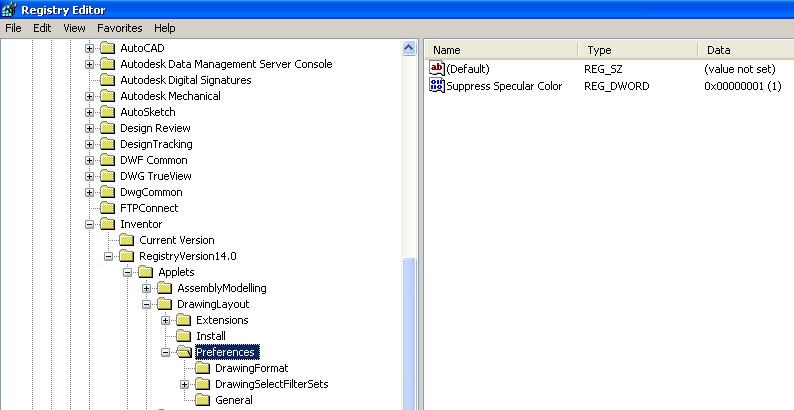
Autodesk has provided a method for disabling these reflections in the form of a registry edit. To change this behavior you can add a DWORD registry key named "Suppress Specular Color" with any  value greater than zero.

(Note: if you looking for how to turn off the reflective image used for shiny parts in the model you can find that tip here: http://inventortrenches.blogspot.com/2011/03/change-reflection-for-shiny-parts.html)


For Inventor 2010:
To get this to work with Inventor 2010, you need to have Service Pack 3 for 2010 installed first, and then you need to install hotfix15338178

Creating the registry Key: 
1). Open the system registry and locate the following registry keys listed below (Start > Run > RegEdit):

[HKEY_CURRENT_USER\Software\Autodesk\Inventor\RegistryVersion14.0\Applets\DrawingLayout\Preferences\]

2). Create a key with this value:

"Suppress Specular Color"=dword:00000001

3.) Restart Inventor


For Inventor 2011:
To get this to work for Inventor 2011, you need to have Service Pack 1 for 2011 installed first.

Creating the registry Key:
1). Open the system registry and locate the following registry keys listed below (Start > Run > RegEdit):

[HKEY_CURRENT_USER\Software\Autodesk\Inventor\RegistryVersion15.0\Applets\DrawingLayout\Preferences\]

2). Create a key with this value:

"Suppress Specular Color"=dword:00000001

3.) Restart Inventor


Here are some screen captures of the registry edit for Inventor 2010 (you can click them to enlarge).


Tuesday, January 4, 2011

How to get imported parts and surfaces to show up in a drawing view?

Issue:
You’ve imported a file (such as STEP or IGES file) but it has come in as a surface model rather than a solid. Because your needs don’t require the file be made a solid, you decide to use the file as is, rather than taking the time to repair it to get it to a solid. The problem is it won’t show up in the drawing view.

Solution:
In the drawing, expand the view node in the browser and locate the model node, then right-click and choose “Include All Surfaces”.


If the surface is a work surface in a part, you'll right-click on the top level of the part node:


If it is a surface based part in an assembly, you'll right-click on the the part node in the assembly tree: