Thursday, October 25, 2012

iLogic: Adding a Save As Dialog Box


Issue:
You'd like to present the user with a Save As dialog box that will allow them to browse for a folder during the execution of your iLogic rule. However, the examples in the iLogic snippets all use a predefined or hard coded folder path. Is there a way to present a Save As dialog box, so the iLogic rule can be more dynamic?

Solution:
Here's a quick snippet that presents a Save dialog box, allowing a destination folder to be selected:


'define the active document
oDoc = ThisDoc.Document
'create a file dialog box
Dim oFileDlg As inventor.FileDialog = Nothing
InventorVb.Application.CreateFileDialog(oFileDlg)

'check file type and set dialog filter
If oDoc.DocumentType = kPartDocumentObject Then
oFileDlg.Filter = "Autodesk Inventor Part Files (*.ipt)|*.ipt"
Else if oDoc.DocumentType = kAssemblyDocumentObject Then
oFileDlg.Filter = "Autodesk Inventor Assembly Files (*.iam)|*.iam"
Else if oDoc.DocumentType = kDrawingDocumentObject Then
oFileDlg.Filter = "Autodesk Inventor Drawing Files (*.idw)|*.idw"
End If

'set the directory to open the dialog at
oFileDlg.InitialDirectory = ThisDoc.WorkspacePath()
'set the file name string to use in the input box
oFileDlg.FileName = iProperties.Value("Project", "Part Number")

'work with an error created by the user backing out of the save
oFileDlg.CancelError = True
On Error Resume Next
'specify the file dialog as a save dialog (rather than a open dialog)
oFileDlg.ShowSave()

'catch an empty string in the imput
If Err.Number <> 0 Then
MessageBox.Show("No File Saved.", "iLogic: Dialog Canceled")
ElseIf oFileDlg.FileName <> "" Then
MyFile = oFileDlg.FileName
'save the file
oDoc.SaveAs(MyFile, False) 'True = Save As Copy & False = Save As
End If

Thursday, September 6, 2012

Inventor Background Color as White: Improved


Issue:
You'd like to use a solid white back ground in Inventor because it allows you to take quick screen captures for use in illustrations for a variety of publications (examples:  how to videos, company  standards documentation, build procedures, catalogs, and so on).

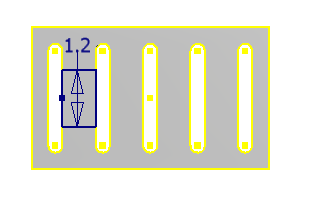
A screen capture taken while using a solid white background.

The problem however, is that when you use the Presentation color scheme, all of the projected geometry is yellow. Working with yellow lines on a white background makes these projected sketch lines difficult to see.

 
Additionally, if you use Inventor during a presentation or training, the white background used in the Presentation color scheme often shows up best, but again the yellow projected lines makes it difficult to work with, particularly with some projectors.

Is there a way to change the projected line color?

Solution:
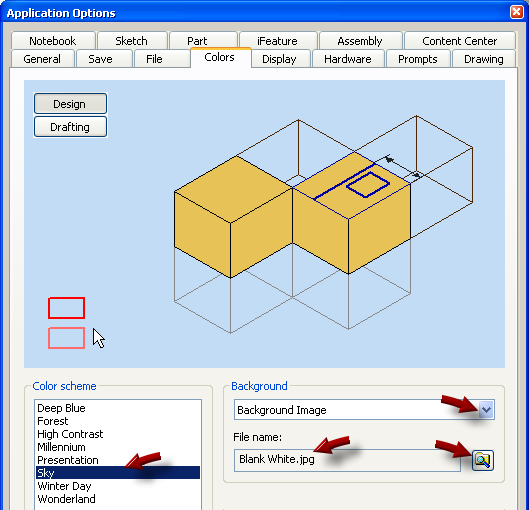
Rather than changing the projected line color used in the Presentation color scheme, you can use one of the other color schemes, and use a solid white background image. To do so, go to the Tools tab > Application Options button > Colors tab,  and then change the Background setting to Background Image. Then use the browse button for the File Name setting to browse out and select a previously saved image file. 


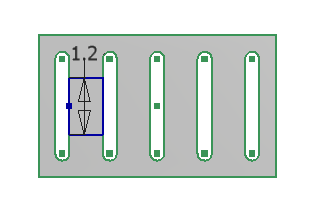
I prefer to use the Sky color scheme (it uses green lines for the projected geometry color), with a file called Blank White.jpg. I created the file called Blank White.jpg using Microsoft Paint and saved it to the Inventor Backgrounds directory.
 
 Give this a try and I think you'll find that it works much better than the yellow on white of the Presentation color scheme.

Wednesday, August 15, 2012

iLogic: Virtual Components


Issue:
You have some iLogic code that iterates through all of the components in an assembly and does some something with the file for each. However, if the assembly contains a virtual component then the iLogic code fails. Is there a way to skip over virtual components when encountered?

Solution:
Here is an iLogic snippet that demonstrates this using If Not TypeOf. In this simple example the iLogic rule simply displays the occurrence name if the occurrence is not a virtual component.


'------------ start of ilogic--------------------
' set a reference to the assembly component definintion.
' This assumes an assembly document is open.
Dim oAsmCompDef As AssemblyComponentDefinition
oAsmCompDef = ThisApplication.ActiveDocument.ComponentDefinition

'Iterate through all of the occurrences
Dim oOccurrence As ComponentOccurrence
For Each oOccurrence In oAsmCompDef.Occurrences
'check for and skip virtual components
'(in case a virtual component trips things up)
If Not TypeOf oOccurrence.Definition Is VirtualComponentDefinition Then
'Show occurrence name In the message box body
MessageBox.Show(oOccurrence.Name, "iLogic")
Else
End If
Next
'------------ end of ilogic--------------------

Wednesday, August 1, 2012

Disable Automatic PDF Display


Issue:
When you use Save As > Save Copy As > PDF, or Export > PDF,  Inventor always opens the PDF viewer to show the PDF file after it is published. This can be a bother, due to the delay caused by waiting for the PDF viewer to open each time. Is there a way to change this so that the PDF does not automatically open after it is published?

Solution:
As odd as it sounds, this is controlled in the publish options of the DWF file. 

Go to Export > Export to DWF and un-check the Display Published File in Viewer option found at the bottom of the General tab. This option controls the PDF viewer as well as the DWF. With this option unchecked the PDF will not open automatically after it is published.

Tuesday, July 3, 2012

iLogic: Get File Information for the Selected Component


Issue:
You want to find the file name or path of a selected component in your iLogic rule.

Solution:
Here is a quick iLogic snippet that will demonstrate how to work with the selected component file and path. In this example the file name, file name without extension, file path, and the full path and file name are written to a message box.


'------------ start of ilogic--------------------
'get currently selected component
Dim oOccurrence as ComponentOccurrence
Try
  oOccurrence = ThisDoc.Document.SelectSet.Item(1)
Catch
  MessageBox.Show("Please select a component before running this rule.", "iLogic")
  Return
End Try

Dim doc As Document
Dim CurFileName As String

'set the selected item
oOccurrence = ThisApplication.ActiveDocument.SelectSet.Item(1)

'get the selected item document occurrence name
doc = oOccurrence.Definition.Document

'get the path and file name of the selected item
CurFileName = doc.FullFileName

'defines backslash as the subdirectory separator
Dim strCharSep As String = System.IO.Path.DirectorySeparatorChar

'find the postion of the last backslash in the path
FNamePos = InStrRev(CurFileName, "\", -1)   
'get the file name with the file extension
Name = Right(CurFileName, Len(CurFileName) - FNamePos)
'get the file name (without extension)
ShortName = Left(Name, Len(Name) - 4)
'get the path of the folder containing the file
Folder_Location = Left(CurFileName, Len(CurFileName) - Len(Name))

MessageBox.Show("File Name: " & Name _
& vblf & "File Name without extension: " & ShortName _
& vblf & "File Path: " & Folder_Location _
& vblf & "Path and File Name: " & CurFileName, "iLogic")
'------------ end of ilogic--------------------